
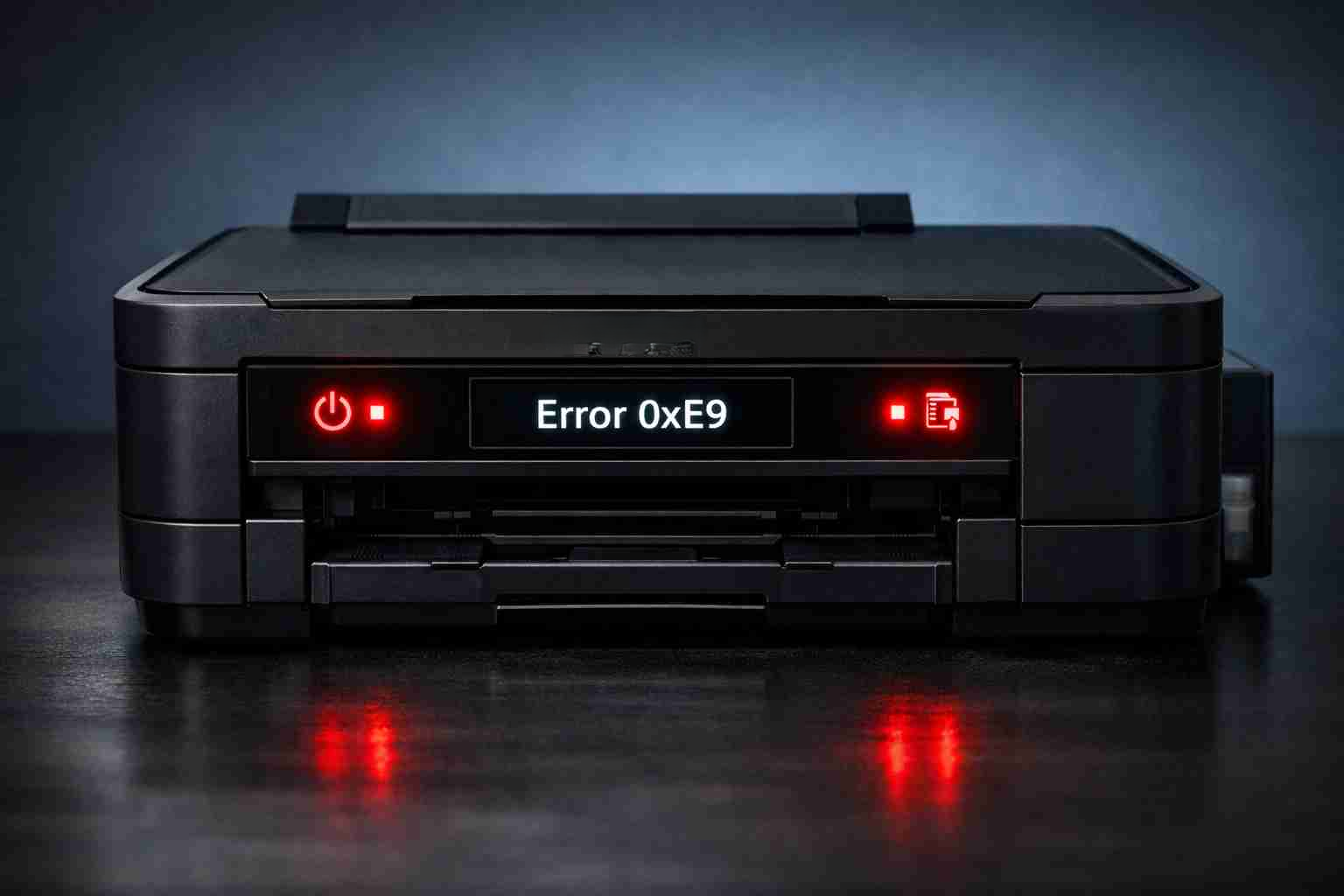
How to Fix Epson Error Code 0xE9: Print Head Alignment or Carriage Stall Issue [Step-by-Step Guide]
You’re in the middle of printing an important document when your Epson printer suddenly stops, flashes error lights, and displays the dreaded Error Code 0xE9. The printer might beep repeatedly, and the print head (the part that holds ink cartridges) may be stuck or making grinding noises. Don’t panic. This error usually indicates a print head alignment failure or a carriage stall—meaning the mechanism that moves the ink cartridges back and forth is blocked or misaligned. In this guide, I’ll walk you through seven proven solutions to clear Error 0xE9 and get your printer back to work, without needing a technician.
This post is part of our ongoing series on Epson error codes. For other common issues, check out our guides on Error 0xF5: Waste Ink Pad Overflow and Error 0xF4: Initialization Failure.
What Is Epson Error Code 0xE9?
Error Code 0xE9 is a hardware-related error that occurs when the printer’s print head cannot move freely. The print head is a critical component that slides along a metal rod (called the carriage shaft) to apply ink to paper. When this movement is obstructed—by paper scraps, dried ink, or physical misalignment—the printer’s sensors detect the stall and display Error 0xE9. This error can also appear if the print head fails to align properly during startup or after a carriage jam.
Common causes include:
- Paper jams that leave torn pieces stuck in the printer path.
- Dried ink or debris on the carriage shaft, causing friction.
- Misaligned print head due to a bump or power outage.
- Faulty carriage motor or belt (less common, but possible in older printers).
- Ink cartridge not seated properly, blocking movement.
Unlike software errors (like 0xF1 or 0xF5), Error 0xE9 usually requires physical intervention. Let’s fix it step by step.
7 Step-by-Step Solutions to Fix Epson Error Code 0xE9
Solution 1: Power Cycle and Reset the Printer
Sometimes a temporary glitch causes Error 0xE9. A full reset can clear the error and allow the print head to realign.
- Turn off the printer using the power button.
- Unplug the power cord from the wall and the printer.
- Wait at least 60 seconds (this discharges residual electricity).
- Plug the printer back in and turn it on.
- If the error persists, proceed to the next solution.
Tip: While the printer is off, check for any visible paper scraps or foreign objects in the paper path.
Solution 2: Manually Move the Print Head to Clear Obstructions
The most common cause of Error 0xE9 is a physical blockage. You’ll need to manually free the print head.
- Open the printer cover or front door (depending on your model).
- Locate the print head—it’s the plastic assembly holding the ink cartridges. It usually rests on the right side when idle.
- Gently try to slide the print head left or right. If it’s stuck, do not force it. Look for:
- Torn paper wrapped around the carriage shaft.
- Dried ink blobs on the metal rod.
- Protective tape (if you recently installed new cartridges).
- Use a flashlight to inspect. Remove any debris with tweezers or a soft cloth.
- Once the print head moves freely, close the cover and try printing again.
Warning: Never use sharp objects that could scratch the carriage shaft.
Solution 3: Clean the Carriage Shaft and Print Head Path
Dried ink and dust can create friction that triggers Error 0xE9. Cleaning the shaft often resolves the issue.
- Unplug the printer.
- Dampen a lint-free cloth with isopropyl alcohol (90% or higher).
- Wipe the metal carriage shaft (the rod the print head slides on). Move the print head back and forth while wiping to distribute the alcohol.
- Also clean the plastic rail and any visible ink residue near the capping station (where the print head parks).
- Let everything dry for 5–10 minutes before plugging the printer back in.
- Run a print head cleaning cycle from the printer’s maintenance menu.
Solution 4: Remove and Reinstall Ink Cartridges
If an ink cartridge is not fully seated, it can tilt and block the print head’s movement.
- Open the printer cover and wait for the print head to move to the replacement position (if it can). If it’s stuck, gently move it manually.
- Remove all ink cartridges by pressing down on the tab and pulling them out.
- Inspect the cartridge slots for debris. Use compressed air to blow out any dust.
- Reinsert the cartridges one by one until you hear a click. Make sure each is fully seated.
- Close the cover and turn on the printer. The error may clear after the printer recognizes the cartridges.
Solution 5: Perform a Print Head Alignment from the Printer Menu
If the print head is slightly misaligned, the printer may display Error 0xE9. A manual alignment can fix this.
- Turn on the printer and press the Setup or Maintenance button (look for a wrench icon).
- Navigate to Print Head Alignment using the arrow keys.
- Select Start or Yes. The printer will print a test page with alignment patterns.
- Follow the on-screen prompts to choose the best alignment pattern (usually by selecting a number).
- Once complete, the printer should recalibrate and clear Error 0xE9.
Note: If the printer won’t let you access the menu due to the error, try Solution 1 (power cycle) first, then quickly enter the menu before the error reappears.
Solution 6: Check for a Faulty Carriage Motor or Belt
If all physical blockages are cleared but the error persists, the issue may be mechanical. This is more common in older printers or those with heavy use.
- Symptoms: Grinding noise, the print head moves only in one direction, or it doesn’t move at all.
- What to check:
- The carriage belt (a rubber band-like strip) may be loose, broken, or slipped off its pulley.
- The carriage motor (located under the printer) may be failing.
- DIY fix: Open the printer’s rear access panel (if available) and inspect the belt. If it’s broken, you’ll need a replacement. For the motor, this is a more advanced repair—consider taking your printer to a service center or replacing it.
Solution 7: Reset the Printer’s Internal Error Counter (Advanced)
Some Epson models store Error 0xE9 in a non-volatile memory. A factory reset or using the WIC Reset Utility for Epson printers can clear the error.
- Download the WIC Reset Utility (a third-party tool for Epson printers). Note: This is for advanced users.
- Connect your printer to a computer via USB.
- Open the utility and select your printer model.
- Click Read Waste Ink Count to check if the error is related to the waste ink pad (though 0xE9 is not directly a waste ink error, the utility can sometimes reset the carriage alignment flag).
- If the error persists, the printer may need a hardware repair or replacement.
Caution: Using third-party tools may void your warranty. Always back up your settings first.
Quick Troubleshooting Table
| Symptom | Likely Cause | Solution to Try First |
|---|---|---|
| Print head stuck, no movement | Physical blockage (paper, debris) | Solution 2: Manually free the print head |
| Grinding noise when printing | Dried ink on carriage shaft | Solution 3: Clean the shaft with alcohol |
| Error appears after ink change | Cartridge not seated correctly | Solution 4: Remove and reinstall cartridges |
| Printer beeps but no movement | Carriage motor or belt issue | Solution 6: Inspect belt and motor |
| Error returns after power cycle | Alignment or firmware glitch | Solution 5: Run print head alignment |
Frequently Asked Questions (FAQ)
Q1: Can I fix Error 0xE9 without opening the printer?
Not usually. Since the error is caused by a physical obstruction or misalignment, you’ll need to access the print head and carriage shaft. However, starting with a power cycle (Solution 1) is always a good first step—it might clear a temporary glitch without any physical intervention.
Q2: Is Error 0xE9 the same as a paper jam?
Not exactly. While a paper jam can cause Error 0xE9 (if torn paper blocks the print head), the error is specifically about the print head’s movement. A standard paper jam error (like 0xF1 or 0xF3) is different. If you see Error 0xE9, focus on freeing the print head rather than just clearing the paper path.
Q3: How often should I clean my printer to prevent Error 0xE9?
We recommend cleaning the carriage shaft and print head path every 3–6 months, especially if you print frequently or use third-party ink. Regular cleaning prevents ink buildup that can cause the print head to stall.
Q4: Will a firmware update fix Error 0xE9?
Rarely. Error 0xE9 is a hardware-level error, so firmware updates typically don’t resolve it. However, updating your printer’s firmware can improve overall stability and might prevent future errors. Check your printer model’s support page for the latest firmware.
Q5: When should I replace my printer instead of fixing it?
If you’ve tried all seven solutions and the error persists—especially if you hear grinding noises or the print head doesn’t move at all—it may be more cost-effective to replace the printer. Epson printers with Error 0xE9 that require motor or belt replacement often cost more to repair than a new printer. For budget models (under $100), replacement is usually the better option.
Editor’s note:
Editor’s Note: I’ve been there—staring at a blinking error light with a deadline fast approaching. Error 0xE9 can make it seem like the printer has given up, but most of the time it’s just a bit of dried ink or a piece of paper. The first time I saw this error, I almost tossed my printer out the window. Instead, lifted the cover, and discovered a tiny fragment of paper stuck under the print head. Within five minutes, it was running perfectly again. Don’t let that error code scare you. With a little patience and the right steps, you can often fix it yourself and avoid a trip to the repair shop.
For more Epson error code fixes, check our guides on Error 0xF4 and Error 0xF5. Have a different error? Let us know in the comments below!

Leave a Reply