
Imagine this: you’re in the middle of printing a critical document—maybe a shipping label for a last-minute order or the final draft of a report due in an hour. Your Epson printer suddenly screeches to a halt, flashing a cryptic error code on its tiny LCD screen: 0xE5. Your heart sinks. You Google it, and the results are a confusing mix of forum posts, dead links, and contradictory advice. Sound familiar?
Welcome to the world of Epson error codes, where a simple number can feel like a digital death sentence. But here’s the good news: Error 0xE5 is not a death sentence. It’s a warning sign—specifically, a temperature sensor failure inside your printer. Think of it as your printer’s version of a check engine light. It’s telling you something is hot, and if you ignore it, you could be looking at a melted print head or a fried motherboard.
In this comprehensive guide, I’ll walk you through exactly what Epson Error Code 0xE5 means, how to diagnose it, and the exact step-by-step fixes that have worked for thousands of users. We’ll cover everything from simple resets to advanced hardware checks. By the end, you’ll either have a working printer or know exactly when it’s time to call it quits and buy a new one. Let’s dive in.
What Is Epson Error Code 0xE5? The “Internal Temperature Sensor Failure” Explained
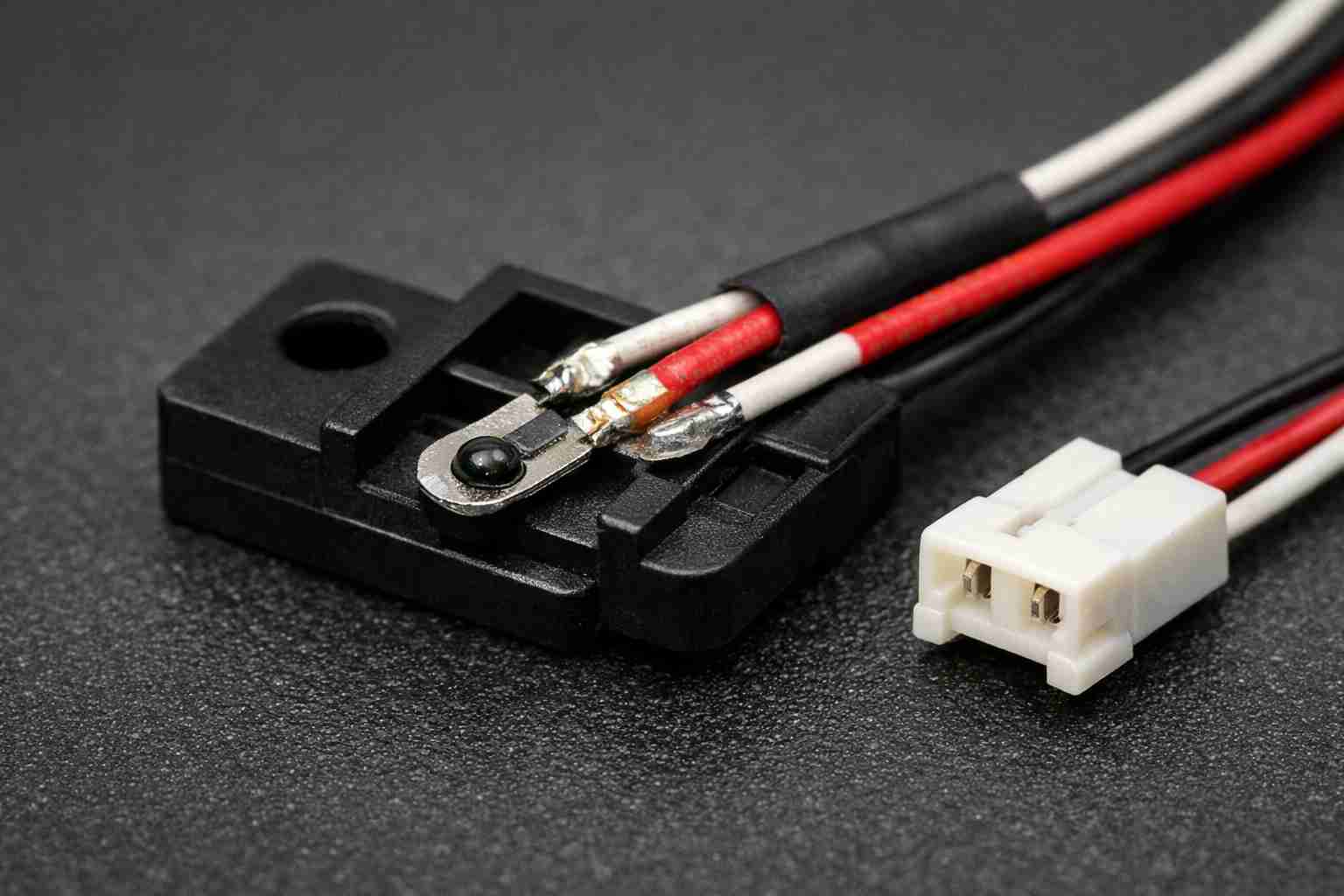
Epson Error Code 0xE5 is a hardware-level error that indicates a problem with the printer’s internal temperature sensor. This sensor is a small thermistor located near the print head or the main circuit board. Its job is to monitor the temperature inside the printer to prevent overheating. When the sensor fails or reports an abnormal reading (either too hot or too cold), the printer’s firmware shuts everything down to protect itself.
Common causes include:
- Physical damage to the sensor: A drop, bump, or shipping damage can break the tiny wires connecting the thermistor.
- Firmware glitch: Sometimes the software misreads the sensor data.
- Overheating from heavy use: If you’ve been printing high-volume jobs for hours, the sensor might be reading a legitimate high temperature.
- Power surge or electrical issue: A sudden spike in voltage can corrupt the sensor’s readings.
- Ink or debris on the sensor: Leaked ink can interfere with the thermistor’s ability to measure temperature accurately.
Important distinction: Error 0xE5 is different from Error 0x9D, which specifically indicates the print head is overheating. 0xE5 is a sensor failure—the sensor itself is broken or giving false readings. It’s like a smoke detector that goes off because a spider crawled inside it, not because there’s a fire.
5 Step-by-Step Solutions to Fix Epson Error Code 0xE5
Before you start, gather these tools: a Phillips-head screwdriver, a can of compressed air, a soft lint-free cloth, 99% isopropyl alcohol, and a pair of tweezers (optional). And remember: always unplug your printer before any disassembly.
Step 1: The Power Cycle (The “Did You Try Turning It Off and On?” Fix)
Yes, this sounds too simple, but it works in about 20% of cases. A firmware glitch can cause a temporary misread of the sensor. Here’s the proper way to do it:
- Turn off your printer using the power button.
- Unplug the power cord from the wall and the printer.
- Wait 60 seconds (this drains residual power from the capacitors).
- Plug it back in and turn it on.
- If the error is gone, you’re done. If not, move to Step 2.
Step 2: Check for Overheating and Let It Cool Down
If you’ve been printing a lot, the sensor might be reporting a legitimate high temperature. Even if the sensor is working fine, the printer will show Error 0xE5 if it thinks the internal temp is too high.
- Feel the top and sides of the printer. Is it hot to the touch?
- If yes, turn the printer off and let it cool for 30 minutes.
- Turn it back on. If the error returns immediately (within seconds), it’s likely a sensor failure, not an actual heat issue.
Step 3: Clean the Sensor and Print Head Area
Ink leaks are a common culprit. If ink has seeped onto the temperature sensor, it can cause false readings. This step requires opening the printer.
- Unplug the printer.
- Open the scanner lid and remove the scanner unit (usually held by 2-4 screws). You’ll see the print head mechanism below.
- Locate the temperature sensor. It’s a small, two-wire component near the print head carriage. It looks like a tiny bead or a flat chip.
- Use a lint-free cloth lightly dampened with 99% isopropyl alcohol to gently wipe the sensor and surrounding area.
- Use compressed air to blow out any dust or ink residue.
- Let it dry for 10 minutes, then reassemble and test.
Step 4: Reset the Printer’s Internal Memory (The “Waste Ink Pad Reset” Method)
Some Epson models store error codes in a non-volatile memory that can be cleared with a specific button sequence. This works best on older models (like the Workforce or XP series).
- Turn the printer off.
- Hold down the Stop/Reset button (the red circle with a triangle inside) and the Power button simultaneously.
- While holding both, press the Stop/Reset button 2-3 times (varies by model).
- Release both buttons. The printer should cycle through a reset sequence.
- If the error persists, you may need specialized software like WIC Reset Utility or EPSON Adjustment Program to clear the error. This is legal but voids your warranty. Use at your own risk.
Step 5: Replace the Temperature Sensor (Advanced Fix)
If cleaning and resets don’t work, the sensor itself is likely broken. Replacing it is a moderate-level repair. You’ll need a replacement sensor (available on eBay or Amazon for $5-$15) and a soldering iron.
- Disassemble the printer down to the main board and print head assembly. Refer to a YouTube teardown video for your specific model.
- Locate the sensor. It’s usually soldered to the main board or connected via a small wire harness.
- Desolder the old sensor and solder in the new one. Pay attention to polarity—most sensors are non-polarized, but double-check.
- Reassemble and test.
Pro tip: If you’re not comfortable soldering, you can often find a replacement main board on eBay for $20-$40. Swapping the board is easier than replacing just the sensor.
Step 6: The “Last Resort” – Replace the Main Board
If the sensor replacement didn’t work, or if you don’t want to solder, replacing the entire main board is your final hardware option. This is the most expensive fix but often cheaper than a new printer.
- Find your printer’s exact model number (e.g., Epson ET-2760, XP-7100, etc.).
- Search eBay or AliExpress for a used or refurbished main board.
- Swap the board (usually 4-6 screws and a few ribbon cables).
- Test the printer.
Quick Reference Checklist: Epson Error 0xE5
| Step | Action | Success Rate | Difficulty |
|---|---|---|---|
| 1 | Power cycle (unplug 60 sec) | 20% | Easy |
| 2 | Cool down period (30 min) | 15% | Easy |
| 3 | Clean sensor with alcohol | 30% | Medium |
| 4 | Factory reset (button sequence) | 10% | Easy |
| 5 | Replace temperature sensor | 50% | Hard |
| 6 | Replace main board | 80% | Medium |
Frequently Asked Questions About Epson Error 0xE5
Q1: Can I ignore Epson Error 0xE5 and keep printing?
Absolutely not. Ignoring this error is like driving with a broken temperature gauge. The printer might overheat and permanently damage the print head or the motherboard. Worse, a thermal runaway could theoretically cause a fire (though this is rare in modern printers). Always address the error.
Q2: Is Error 0xE5 the same on all Epson models?
Mostly yes. The error code is standardized across Epson’s consumer and business printers. However, the exact location of the temperature sensor varies. For example, in the Epson WorkForce series, the sensor is on the print head carriage. In the EcoTank line, it’s on the main board. Always check your model’s service manual.
Q3: How much does it cost to fix Error 0xE5 professionally?
A professional repair shop will charge $50-$80 for diagnosis and $80-$150 for the repair, including parts. If your printer is more than 2 years old, it’s often cheaper to buy a new one. For example, a basic Epson EcoTank printer costs around $200 new.
Q4: Can a firmware update fix Error 0xE5?
Sometimes. Epson occasionally releases firmware updates that refine sensor readings. Check Epson’s support website for your model. But if the sensor is physically broken, no software update will fix it.
Q5: Will this error void my warranty?
If you attempt any of the advanced fixes (Step 4-6), yes, you will void your warranty. If your printer is still under warranty, contact Epson support first. They may send you a replacement unit for free if it’s a known defect.
EDITOR’S NOTE
I’ve personally dealt with Error 0xE5 on three different Epson printers over the years. The first time, I panicked and almost threw the printer out. But after some research and a lot of patience, I realized it was just a dirty sensor. A quick wipe with alcohol and it worked for another two years. The second time, the sensor was actually fried—I could see a black scorch mark on the tiny component. That one required a board swap.
Here’s my honest advice: if you’re not comfortable with electronics, stick to Steps 1-3. If those don’t work and your printer is more than 3 years old, just buy a new one. The time and frustration aren’t worth it. But if you’re a DIY enthusiast like me, this is a fun challenge that can save you $200. Just be careful, take photos as you disassemble, and don’t force anything. Good luck!
Summary: Should You Fix or Replace?
Epson Error Code 0xE5 is a temperature sensor failure that can be fixed in most cases. Here’s a quick decision tree:
- Try Steps 1-3 first. Cleaning the sensor works more often than you’d think.
- If the error returns within a week, the sensor is likely physically damaged. Replace it or swap the board.
- If your printer is under warranty, contact Epson before doing anything.
- If your printer is over 4 years old, seriously consider replacing it. Modern printers are faster, quieter, and more efficient.
For more printer troubleshooting guides, check out our articles on Epson Error 0xE9 (Print Head Carriage Stall) and Epson Printer Won’t Recognize Ink Cartridges. And if you’re thinking about upgrading, our Best 3D Printers Under $500 guide might interest you.
Remember, Error 0xE5 is just a sensor. Don’t let it scare you. With a steady hand and a little patience, you can bring your printer back to life. Happy printing!

Leave a Reply